Dynamic Importance Adjustment
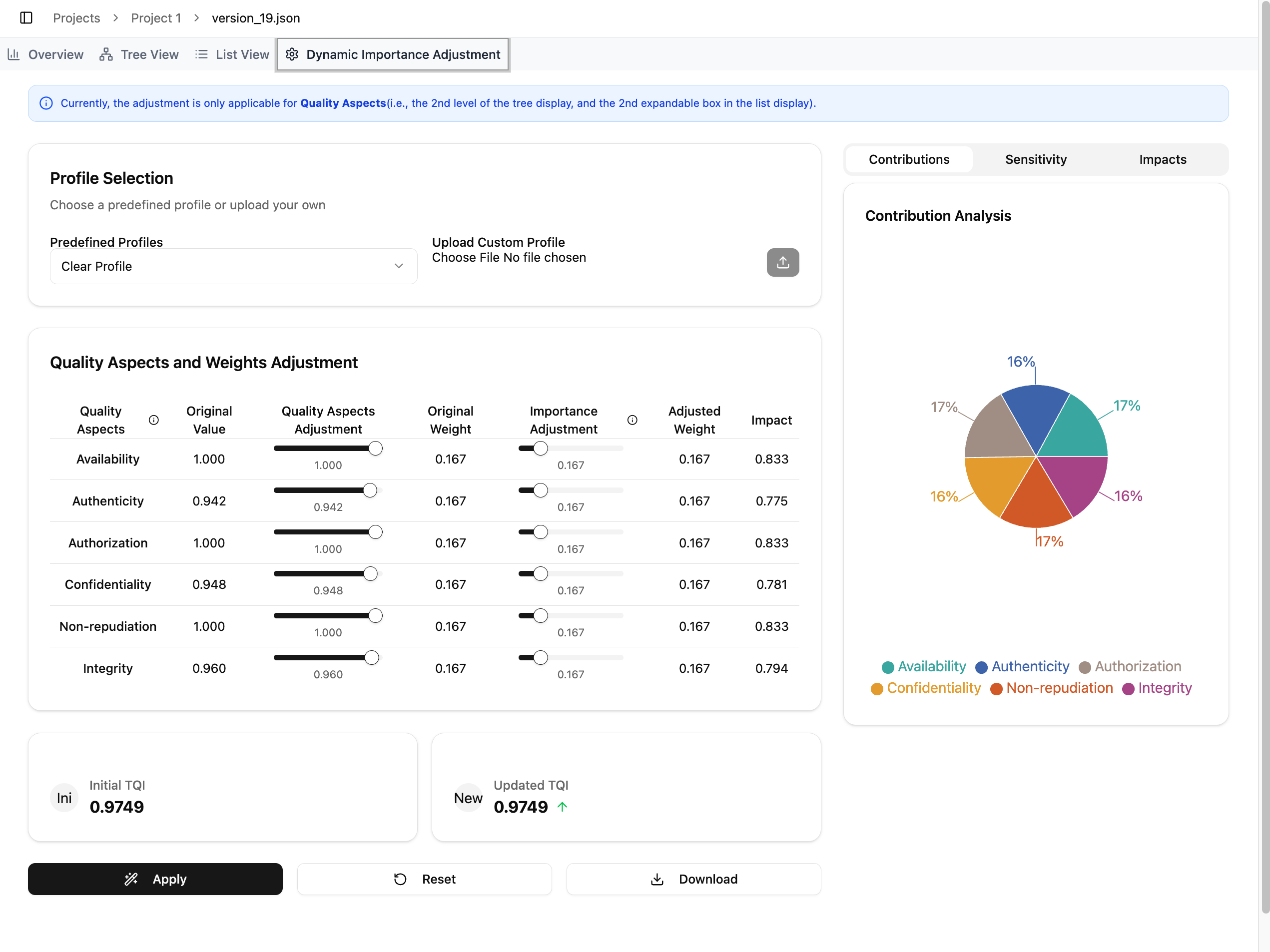
The Dynamic Importance Adjustment view allows users to explore how different Quality Aspects influence the overall project quality. This feature helps users understand the contribution of each aspect and experiment with alternative weight configurations.
At this time, adjustments apply only to Quality Aspects (i.e., the second level of the tree display and the second-level expandable section in the List View).
-
Purpose: Understanding the impact of various quality factors is crucial. The PIQUE Visualizer allows users to dynamically adjust the weights of these factors, offering insights into how changes might affect the overall quality score.
-
Functionality: Through an intuitive interface, users can modify weights and immediately see the adjusted results in the visualization, facilitating a deeper analysis of quality determinants.
Profile Selection
This section allows users to choose an existing weighting profile or upload a custom one.
-
Predefined Profiles: These profiles are provided by the PIQUE Lite team and offer ready-made configurations for common use cases. Users can select any predefined profile from the dropdown.
-
Upload Custom Profile: Users may upload their own JSON profile from their computer. Once uploaded, the sliders and values in the adjustment table will automatically reflect the contents of this profile.
Users may also proceed without selecting or uploading a profile—the next section will simply start with the existing project weights.
Quality Aspects and Weights Adjustment
This table displays each Quality Aspect along with its original values and weights. Users can modify the sliders under Quality Aspects Adjustment and Importance Adjustment to experiment with different scoring and weighting configurations.
As adjustments are made:
- The Updated TQI at the bottom updates immediately.
- The Contribution charts, Sensitivity charts, and Impact List on the right update in real time to reflect the new configuration.
These visualizations help users understand how weight changes shift the relative influence of each Quality Aspect.
Applying or Saving Adjustments
At the bottom of the page, users have three actions:
-
Apply: Saves the adjusted weights directly to the selected project version.
-
Reset: Reverts all sliders and values to the default or original configuration.
-
Download: Allows users to export the adjusted weights as a profile file. This file can be uploaded later in the Profile Selection section to reuse the configuration.