Uploading and Managing Files
PIQUE allows you to upload and manage files for different versions of your project. You can compare multiple projects, hide files you don’t need, and filter or search for specific files.
Uploading Files
To upload a file, click the Get Started button, a window for file uploading will pop up:
- Click the + button to add a project.
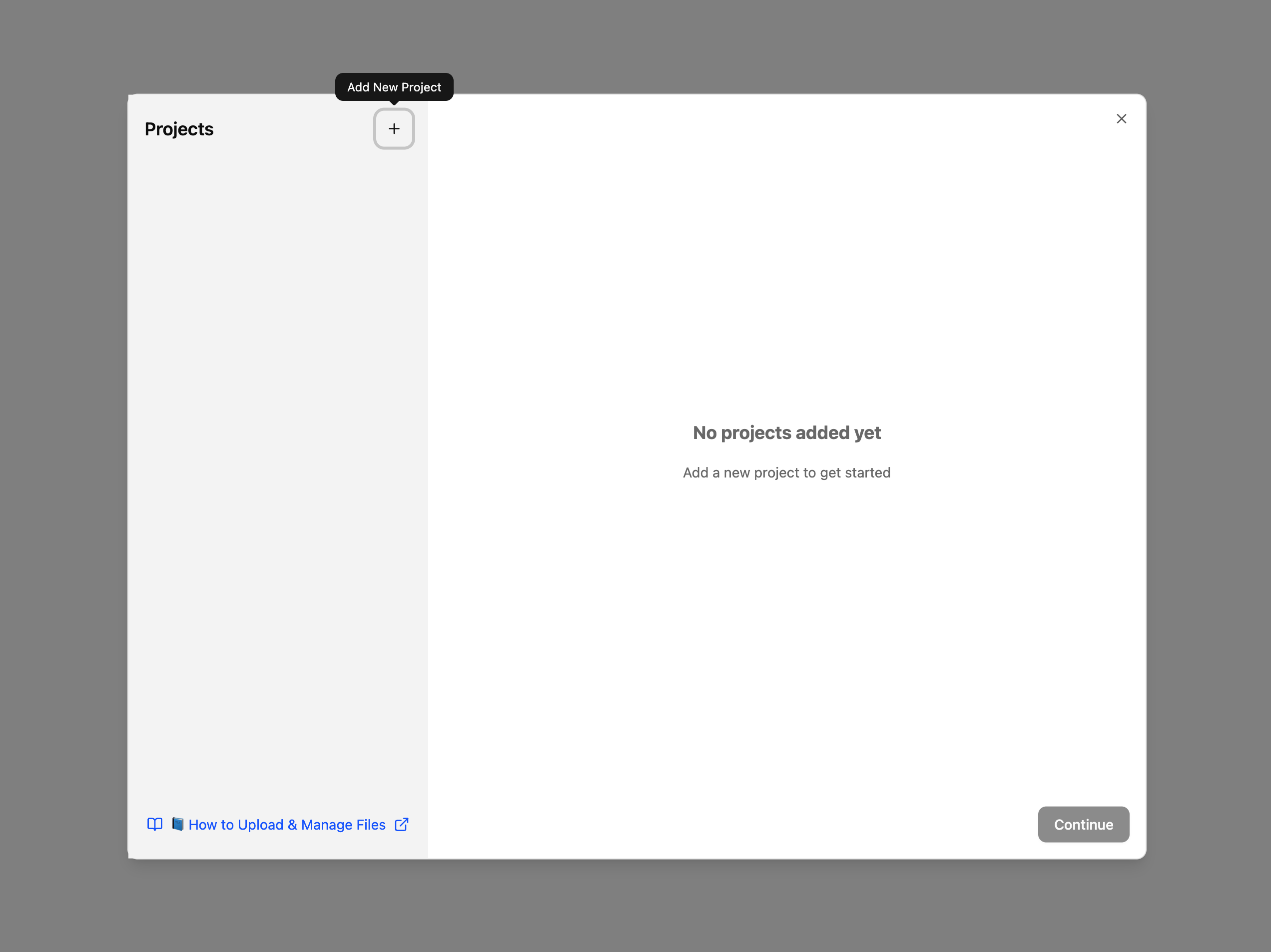
- Click the Add Files button.
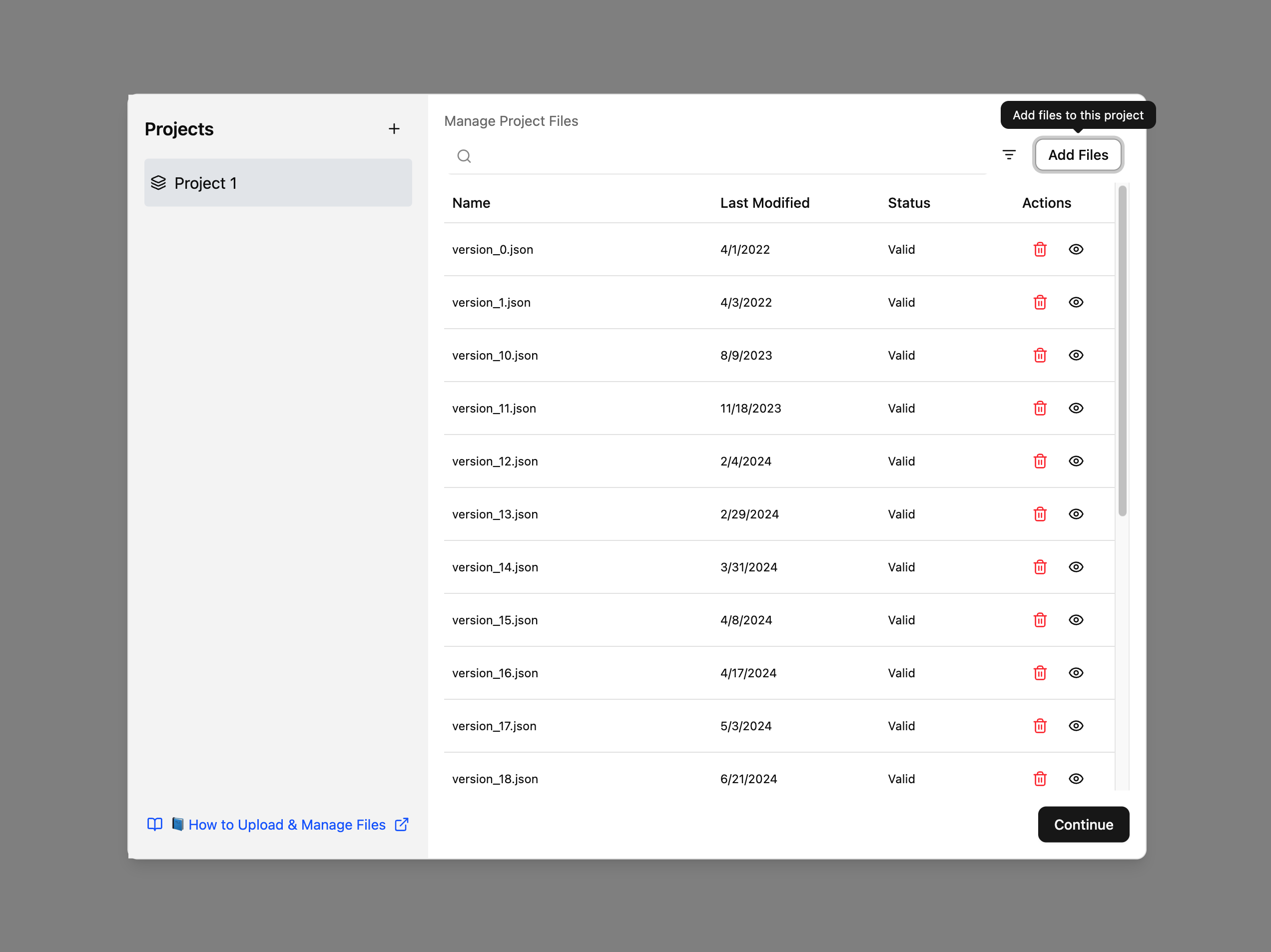
- Select the JSON files from your computer. You also could rename the project, delete a project, delete file(s) from projects, decide whether a uploaded file will be displayed or hidden, etc.
- Click the Continue button to move on to the dashboard. The Continue will only be activated when there is at least one file uploaded.
Adding Multiple Projects
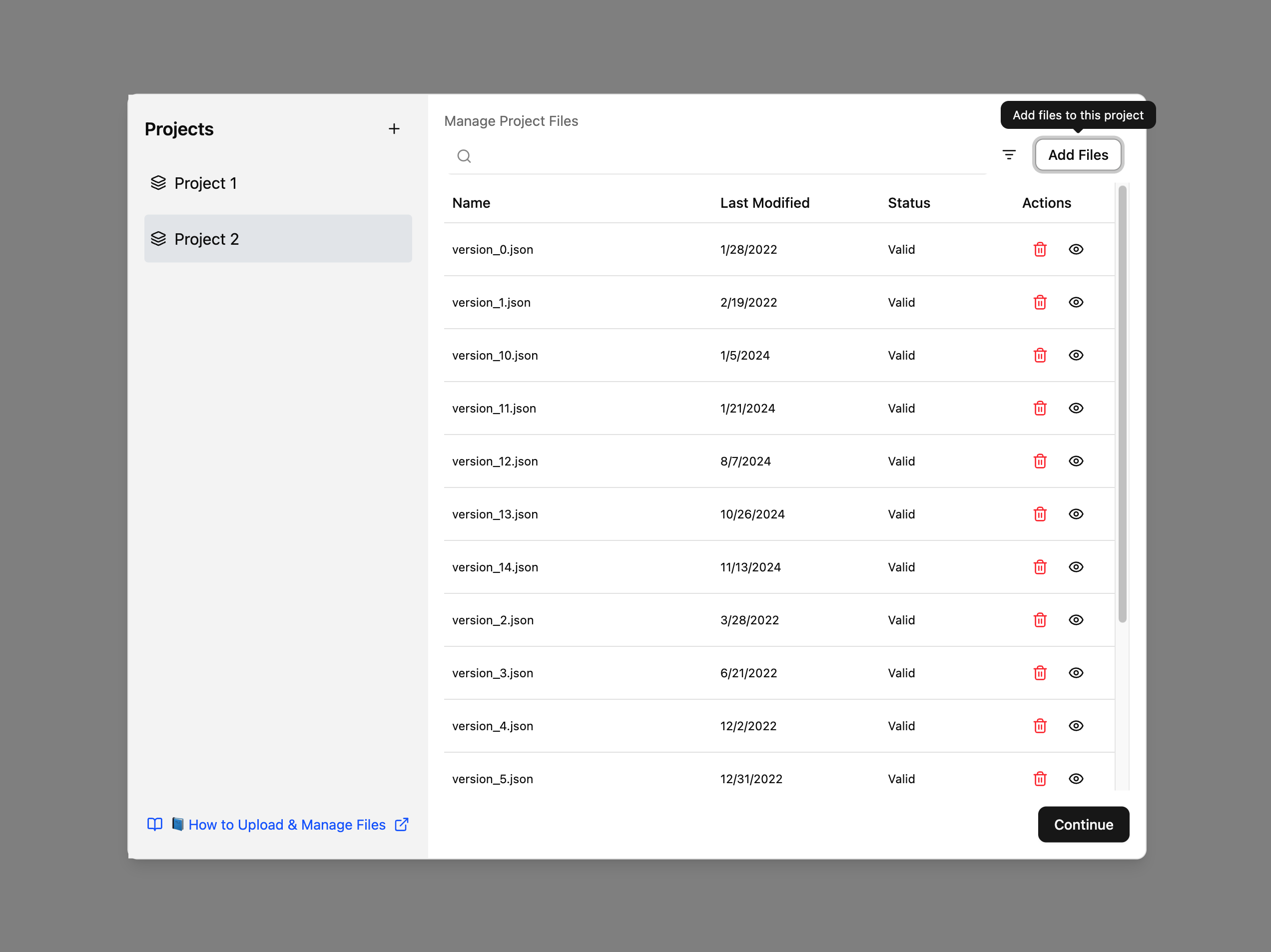
You can upload files for multiple projects to compare their quality scores. To add a new project:
- Click the + button to add an additional project.
- Click the Add Files button.
- Select the JSON files from your computer.
- Click the Continue button to move on to the dashboard. The Continue will only be activated when there is at least one file uploaded.
Hiding Files
If your file list becomes cluttered, you can hide files temporarily:
- Click the Hide icon next to the file you want to hide
- To view hidden files, enable the Show Hidden Files option

Searching for Files
To find a specific file:
- Use the Search bar at the top of the page
- Enter the project name, version, or any other identifier
- The list will filter automatically as you type
Filtering Files
You can filter files to focus on specific projects or versions:
- Click the Filter button
- Select the criteria (e.g., project name, version, date)
- The file list will update to show only matching files
Error Messages
If you get an error during upload, refer to the Input Errors page for troubleshooting steps.